
1. Home
  2. Gateway
  3. How to reset the Gateway preferences

How to reset the Gateway preferences

ENNLFR

You need administrator rights to perform the steps below.

  1. Close all Diamonds/ PowerConnect/ BIM Expert projects.
  2. Open Task Manager (CTRL +  ALT +  DEL or right mouse click on the Windows bar).
  3. Go to the tab page “Details”.
    Sort the list alphabetically by clicking on the column header “Name“.
  4. Find BuildSoft.Gateway.exe in the list. If you cannot find it, skip this step.
    Select it and hit End Task.
    BuildSoft.Gateway.exe will disappear from the list.
  5. Find BuildSoft.Gateway.Server.exe in the list. If you cannot find it, skip this step.
    Select it and hit End Task.
    BuildSoft.Gateway.Server.exe will disappear from the list.
  6. Find BuildSoftServer.exe in the list. If you cannot find it, skip this step.
    Select it and hit End Task.
    BuildSoftServer.exe will disappear from the list.
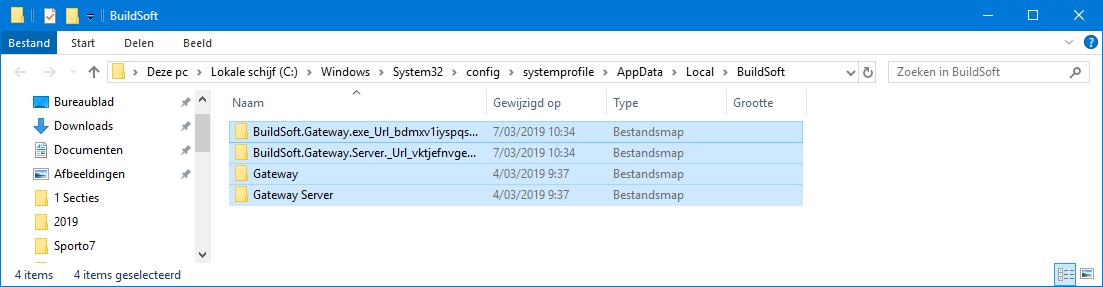
  7. Open Windows Explorer. Go to the folder C:\Windows\System32\config\systemprofile\AppData\Local\BuildSoft
    Select the entire content of the folder, and hit DEL.

    By deleting the content of this folder, you’re deleting user-defined materials/ cross-sections from the library. You’re setting the libraries back to factory settings.
    If you used user-defined materials/ cross-sections for certain project, you’ll still be able to open/ use that project. The deletion only applies to what was stored in the library.
  8. Open Task Manager ( CTRL +  ALT +  DEL).
    Go to the tab page Services.
    Find the Gateway and Gateway Server in the list and hit “Start“.
    If Gateway has “Stopped” as status again, try to start it again. It has the tendancy not to start from the first time.
  9. Both Gateway and Gateway Server should be started now.
    Start Diamonds/ PowerConnect or BIM Expert.

Je hebt beheerdersrechten nodig om onderstaande stappen uit te voeren.

  1. Sluit alle Diamonds/ PowerConnect/ BIM Expert projecten.
  2. Open het Taakbeheer (CTRL +  ALT +  DEL).
  3. Ga naar het tabblad “Details”.
    Sorteer de lijst alfabetisch door op de kolomhoofding “Naam” te klikken.
  4. Zoek BuildSoft.Gateway.exe in de lijst. Als je hem niet kan vinden, sla deze stap dan over.
    Selecteer hem en klik op “
    Taak beëindigen”.
    BuildSoft.Gateway.exe zal uit de lijst verdwijnen.
  5. Zoek BuildSoft.Gateway.Server.exe in de lijst. Als je hem niet kan vinden, sla deze stap dan over.
    Selecteer hem en klik op “
    Taak beëindigen”.
    BuildSoft.Gateway.Server.exe zal uit de lijst verdwijnen.
  6. Zoek BuildSoftserver.exe in de lijst. Als je hem niet kan vinden, sla deze stap dan over.
    Selecteer hem en klik op
    Taak beëindigen.
    BuildSoftserver.exe zal uit de lijst verdwijnen.
  7. Open Windows Verkenner. Ga naar de map C:\Windows\System32\config\systemprofile\AppData\Local\BuildSoft
    Selecteer de inhoud van die map en druk op DEL.

    Door de inhoud van deze map te verwijderen, verwijdert je door de user-defined materialen/ doorsneden uit de bibliotheek. Je zet de bibliotheken terug naar de fabrieksinstellingen.
    Als je ooit user-defined materialen/doorsneden gebruikt hebt in een project, kan je dat project nog steeds openen/ gebruiken. De verwijdering heeft enkel betrekking op wat in de bibliotheek werd opgeslagen.

  8. Open het Taakbeheer ( CTRL +  ALT +  DEL ).
    Ga naar het tabblad Services.
    Zoek Gateway & Gateway Server in de lijst en klik op “Starten”.
    Als Gateway terug als status “Gestopt” krijgt, dan start je hem nog eens. Hij heeft de neiging om niet van de eerste keer te willen starten.
  9. Zowel Gateway als Gateway Server moeten nu gestart zijn.
    Start Diamonds / PowerConnect of BIM Expert.

Vous avez besoin de privilèges d’administrateur pour effectuer les étapes ci-dessous.

  1. Fermer tous les projets de Diamonds/ PowerConnect/ BIM Expert
  2. Ouvrez le Gestionnaire des tâches ( CTRL +  ALT +  DEL ou cliquez avec le bouton droit de la souris sur la barre Windows).
  3. Allez vers l’onglet Détails.
    Triez la liste par ordre alphabétique en cliquant sur l’en-tête de colonne « Nom ».
  4. Cherchez BuildSoft.Gateway.exe dans la liste. Si vous ne le trouvez pas, passez cette étape.
    Sélectionnez-le et appuyez sur “Fin de tâche”.
    BuildSoft.Gateway.exe disparaît de la liste.
  5. Cherchez BuildSoft.Gateway.Server.exe dans la liste. Si vous ne le trouvez pas, passez cette étape.
    Sélectionnez-le et appuyez sur “Fin de tâche”.
    BuildSoft.Gateway.Server.exe disparaît de la liste.
  6. Cherchez BuildSoftserver.exe dans la liste. Si vous ne le trouvez pas, passez cette étape.
    Sélectionnez-le et appuyez sur “Fin de tâche”.
    BuildSoftserver.exe disparaît de la liste.
  7. Accédez au dossier C:\Windows\System32\config\systemprofile\AppData\Local\BuildSoft.
    Sélectionnez le contenu du dossier et appuyez sur SUPPR.

    En supprimant le contenu de ce dossier, vous supprimez les matériaux/ sections définis par l’utilisateur de la bibliothèque. Vous rétablissez les paramètres par défaut des bibliothèques.
    Si vous avez utilisé des matériaux/coupes transversales définis par l’utilisateur pour certains projets, vous pourrez toujours utiliser ces projets. Seuls les matériaux/coupes transversales définis par l’utilisateur et stockés dans la bibliothèque seront supprimés.

  8. Ouvrez le Gestionnaire de tâches ( CTRL +  ALT +  DEL).
    Allez vers l’onglet “Services”.
    Recherchez Gateway et Gateway Server et cliquez sur “Démarrer”.
    Si Gateway affiche à nouveau le statut « Arrêté », essayez de le redémarrer. Il a tendance à ne pas démarrer du premier coup.
  9. Gateway et Gateway Server doivent être démarrés maintenant.
    Démarrez Diamonds/PowerConnect ou BIM Expert. 

Was this article helpful?

Related Articles

Need Support?
Can't find the answer you're looking for? Don't worry we're here to help!
CONTACT SUPPORT
